It’s 8 a.m., and your screen is a mess of open tabs. You’re copy-pasting from one window to another, scrambling to turn chat messages into documents, surveys, or meeting invites before your first call. Sound familiar? We all know the standard AI chatbot model: you ask a question and receive a text response. That era is ending. The real productivity revolution is not about how smart a chatbot is, but how well it integrates into the tools you use every day.
This is where Google Gemini has a major advantage: it lives directly within your Google account. Below, we explore 8 free features that transform how you handle documents, data, and multimedia.
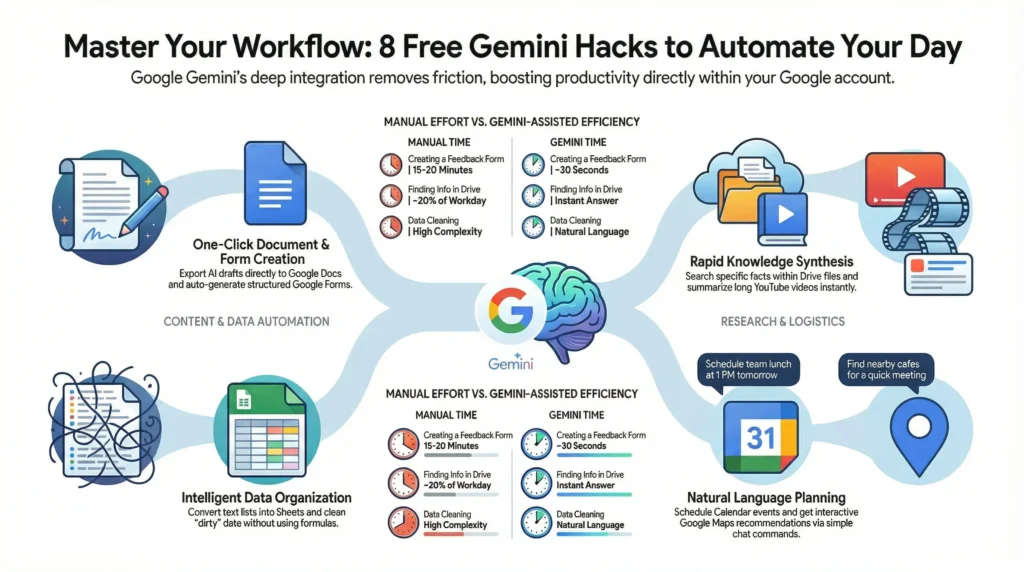
Visual Ecosystem Overview: See how Gemini acts as a central hub, connecting and automating your Google Workspace tasks to eliminate manual labor and reclaim your time.
Feature 1: Export Ideas Directly to Google Docs
A blank page and constant copy-pasting slow you down. Gemini lets you skip busywork and transfer ideas instantly.
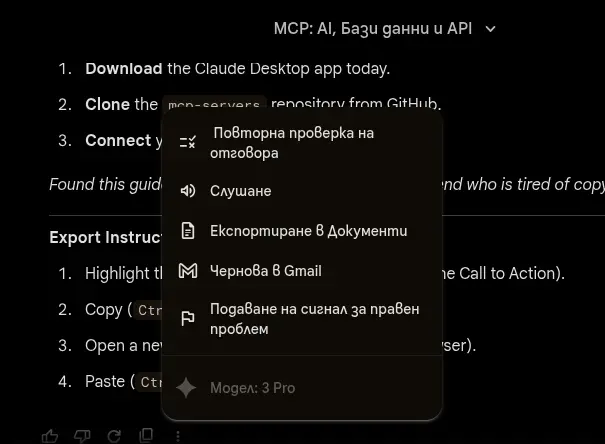
When you ask Gemini to write a blog post, project proposal, or formal letter, the AI does more than generate text. At the end of the response, you see an Export to Docs button. With one click, your text becomes a new, formatted document in your cloud storage, ready for final edits.
Sample Prompt: Write a detailed, engaging blog post about the Model Context Protocol (MCP). Explain what MCP is, why it’s important in 2025/2026 for AI agents and content creation, and how it enables AI to automatically generate and publish blog posts. Include real-world examples, such as building MCP servers for blogs or automating content with tools like GitHub and LLMs. The post should be around 1200 to 1500 words, SEO optimized with headings, subheadings, bullet points, and a call to action at the end. Use a friendly, informative tone for tech enthusiasts and bloggers.
The Result:
Feature 2: Build Google Forms Surveys with AI
Creating forms is often a tedious chore. You have to brainstorm questions, choose response types, and configure the layout. This busywork distracts from high-value thinking and pulls your focus from deeper, more strategic tasks. Gemini handles both steps at once, letting you reclaim time and energy for creative problem solving or deep work that moves projects forward.
Describe the goal of your survey. The AI suggests relevant questions and automatically builds the structure for your Google Form, saving you 15-20 minutes of manual setup.
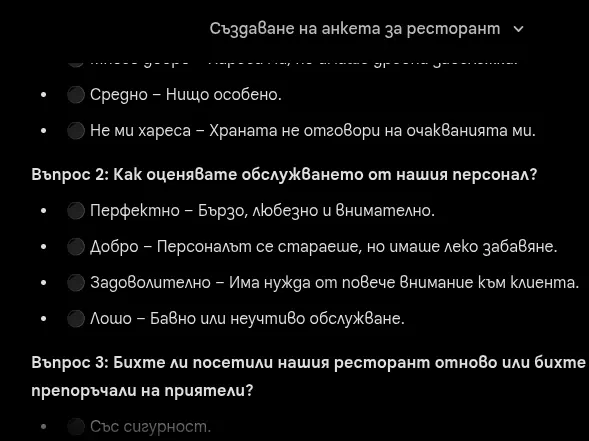
Sample Prompt: Create a customer feedback survey for a restaurant visit for Google Forms. Include a title, description, and 5 questions: 3 multiple-choice questions about food and service, and 2 open-ended questions for recommendations.
The Result: Gemini not only writes questions but also defines answer types, such as Multiple Choice or Checkboxes, making the transfer to Google Forms a one-minute task.
Feature 3: Turn Chaos into Structured Tables
Many users find complex formulas and manual table creation in Google Sheets intimidating. Gemini bridges natural language and tabular data. When you no longer need to puzzle through formulas or set up tables by hand, you free your mind for deeper analysis, creative planning, and strategic thinking. With busywork automated, you can focus on spotting trends, drawing insights, and making impactful decisions.
If you have a long list of ideas, expenses, or tasks in text format, do not enter them cell by cell. Instruct Gemini to convert them into a table.
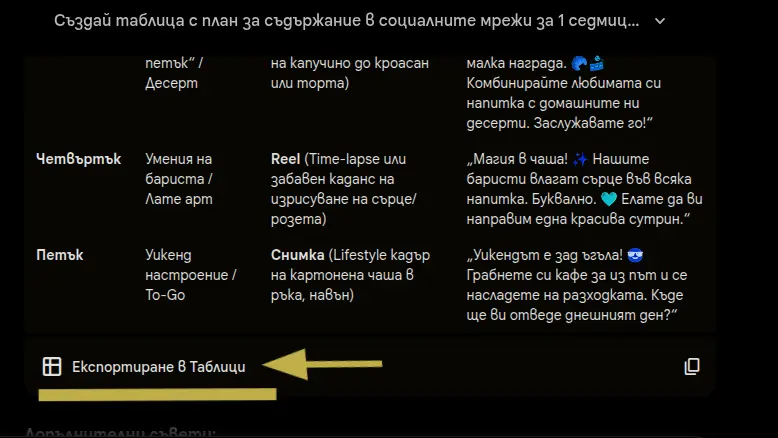
Sample Prompt: Create a social media content plan for 1 week (Monday to Friday) for a coffee shop. Include columns for Day, Post Topic, Format (Reel or Photo), and Sample Caption.
The Result: You don’t even need to copy the cells manually. Use the export button to send the data directly to Sheets.d Organization.
Feature 4: Data Cleaning and Organization
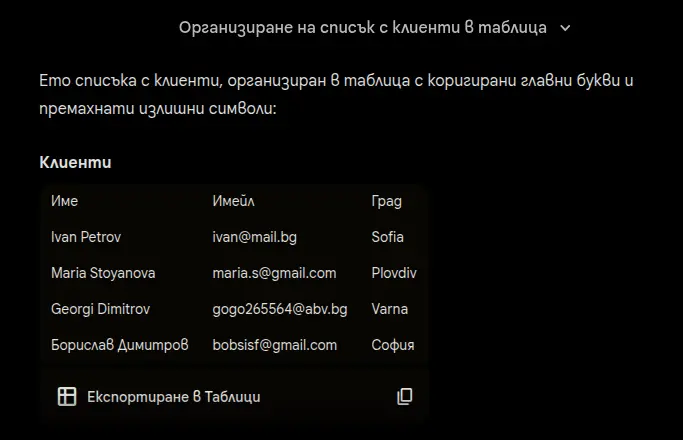
This advanced feature is valuable for anyone working with data. We often encounter “dirty data”: lists with inconsistent formatting, missing capital letters, or mixed information. These messy lists can make you anxious about sharing results or worried you’ll miss something important in a client presentation. Instead of fixing them manually, let the AI do the heavy lifting. Gemini instantly transforms chaotic data into clean, organized tables that are client-ready and polished. This not only saves time but also gives you confidence that your information is ready to impress.
Gemini can analyze the context of your data and “clean” it, standardizing formats without the need for complex formulas.
Sample Prompt: I have this messy customer list. Organize it into a clean table with columns for Name, Email, and City. Fix the capitalization where it is missing: Ivan Petrov, ivan@mail.bg, Sofia Maria Stoyanova: maria.s@gmail.com (Plovdiv), georgi_dimitrov, gogo265564@abv.bg, varna Borislav dimitrov, SOFIA bobsisf@gmail.com
The Result: A perfectly formatted table ready for professional use.
Feature 5: Search Your Drive Files
Finding information consumes about 20% of the workday. Instead of clicking through folders to find “that presentation from March,” use Gemini as a search engine for your own data. content of your PDFs, Google Docs, and Sheets to provide precise answers without you ever having to open the file.
Sample Prompt: Find the file “Marketing trends for 2025” and write a brief summary.
The Result: Gemini locates the exact document among hundreds of others and instantly extracts the key points for you.
Feature 6: YouTube Video Summaries
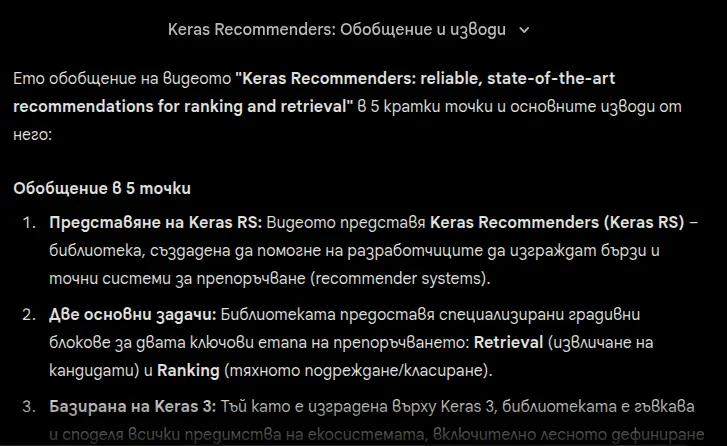
Video content is valuable, but watching it takes time. If you find a 40-minute tutorial, lecture, or podcast but have only a few minutes, Gemini is the solution.
With YouTube integration, Gemini can analyze a video and provide a concise summary or key takeaways in seconds.
The Result:Even with just a link, Gemini identifies the topic and delivers the essentials, saving you from having to dig through technical documentation.
Feature 7: Smart Recommendations with Google Maps
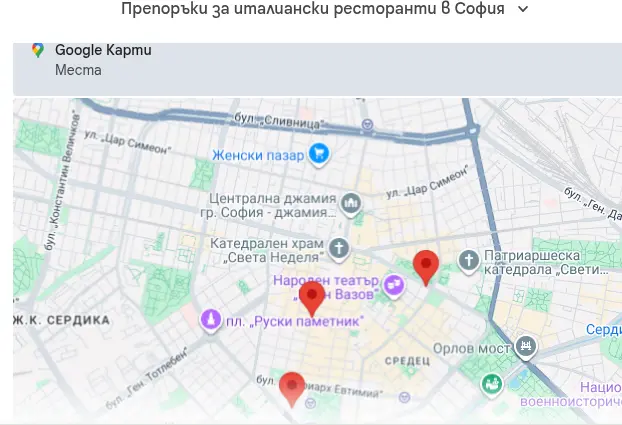
When planning a meeting or trip, Gemini does not just generate random names. It taps into Google Maps‘ real-time database.
You can search using specific criteria: atmosphere, price, or location. Instead of plain text, you receive interactive cards with ratings, photos, and direct navigation links.
Sample Prompt: Recommend 3 Italian restaurants in central Sofia with ratings of 4.5 or higher and suitable for a date. Show me where they are on the map.
The Result:Gemini filters through hundreds of Maps results to provide only the top 3 that match your high standards for quality and ambiance.
Feature 8: Voice-Controlled Calendar Management
Do you often forget to log meetings immediately? With Gemini, adding events is done through natural language, eliminating the need to click through dates and times in your calendar.
This feature is especially useful when you are on the go. Say or type what needs to happen and when.
Sample Voice Command: Schedule a “Budget Discussion Meeting” for tomorrow at 2:00 PM for one hour.
The Result:Instead of manually filling out fields, Gemini prepares the entire invite for you.
Every day, hours slip away as you jump between tabs, copy and paste the same information across apps, and watch your energy drain on repetitive admin work. The real cost? Time lost and creativity put on hold. If productivity matters, your tools should remove these blockers—not just answer questions, but truly accelerate your work. Here’s why Gemini stands out as the assistant that gives you back those lost hours and makes deep focus possible.
The market is currently flooded with AI tools: ChatGPT, Claude, and Copilot. If you are wondering which model is more powerful, check out our detailed comparison of Gemini 3 Pro vs. GPT-5.2. The logical question is: “Why do I need another one?”
The answer is simple: Integration.
While other chatbots act as isolated islands where you must manually move information via copy-paste, Gemini is a seamless part of your digital ecosystem. It offers a frictionless presence because it is already at home in your Google account, ready to collaborate with you across your favorite Google tools.
Three strategic reasons to make it your primary assistant:
Eliminates Workflow Friction: This is the only AI that can turn a conversation into a document, spreadsheet, or email with a single click. No more switching tabs.
Knows Your Context: Your most valuable information often is not on Google Search, but in your own files. Gemini can find “that invoice from last March” or summarize a contract without you needing to upload it elsewhere.
Zero Barrier to Entry: You already have an account. No new registration, profile setup, or credit card required. Just open it and start working.
Ultimately, the best productivity tool isn’t the most complex one: it is the one that is always within reach. For millions of Google users, that tool is Gemini.
Frequently Asked Questions
Is this actually free?
Yes, the features described in this article are part of the standard, free Google Gemini plan for personal accounts (@gmail.com). While Google offers a paid plan (Gemini Advanced) for high-capacity and complex tasks, the free version is more than enough for daily work in Docs, Drive, and Maps.
Is my data secure? Does Google read my files?
This is a common concern. Gemini only accesses your Drive and Docs files when you explicitly enable “Extensions” and ask a specific question about them. According to Google’s official terms for personal accounts, your Workspace data is not used to train the general AI model and is not reviewed by humans.
Why does Gemini say it “cannot create files”?
For security reasons, Gemini cannot create files in the background without your knowledge. Instead of saying “Create a file,” ask it to “Write the text” or “Generate the table” in the chat. Once the content is ready, use the Export to Docs/Sheets button below the response to save it as a new file.
Why can’t I see the Google Maps or Drive buttons?
If the integrations aren’t working, they are likely disabled. Go to Settings > Extensions in the Gemini menu and ensure that “Google Workspace” and “Google Maps” are toggled on (glowing blue). If you are using a work or school account, your administrator may have restricted this access.
Can Gemini edit an existing document?
Currently, Gemini in chat mode operates on a “read and create new” basis. It can read an existing document and suggest changes, but it cannot directly enter the original file to delete or modify text. You will need to copy the new text or export a fresh document.
Did you find this information helpful? Productivity is contagious. Share this article with colleagues facing tight deadlines or friends overwhelmed by administrative tasks. A quick share could save them hours of tedious manual labor and give them back their free time. Let us work smarter, not harder.